Google Sign-in - The KMP way

This is a series of articles exploring a singular Kotlin UI development project. The aim is to demonstrate integration of native libraries specific to iOS/Android while keepign the UI layer lightweight and cross-platform.
Final result:
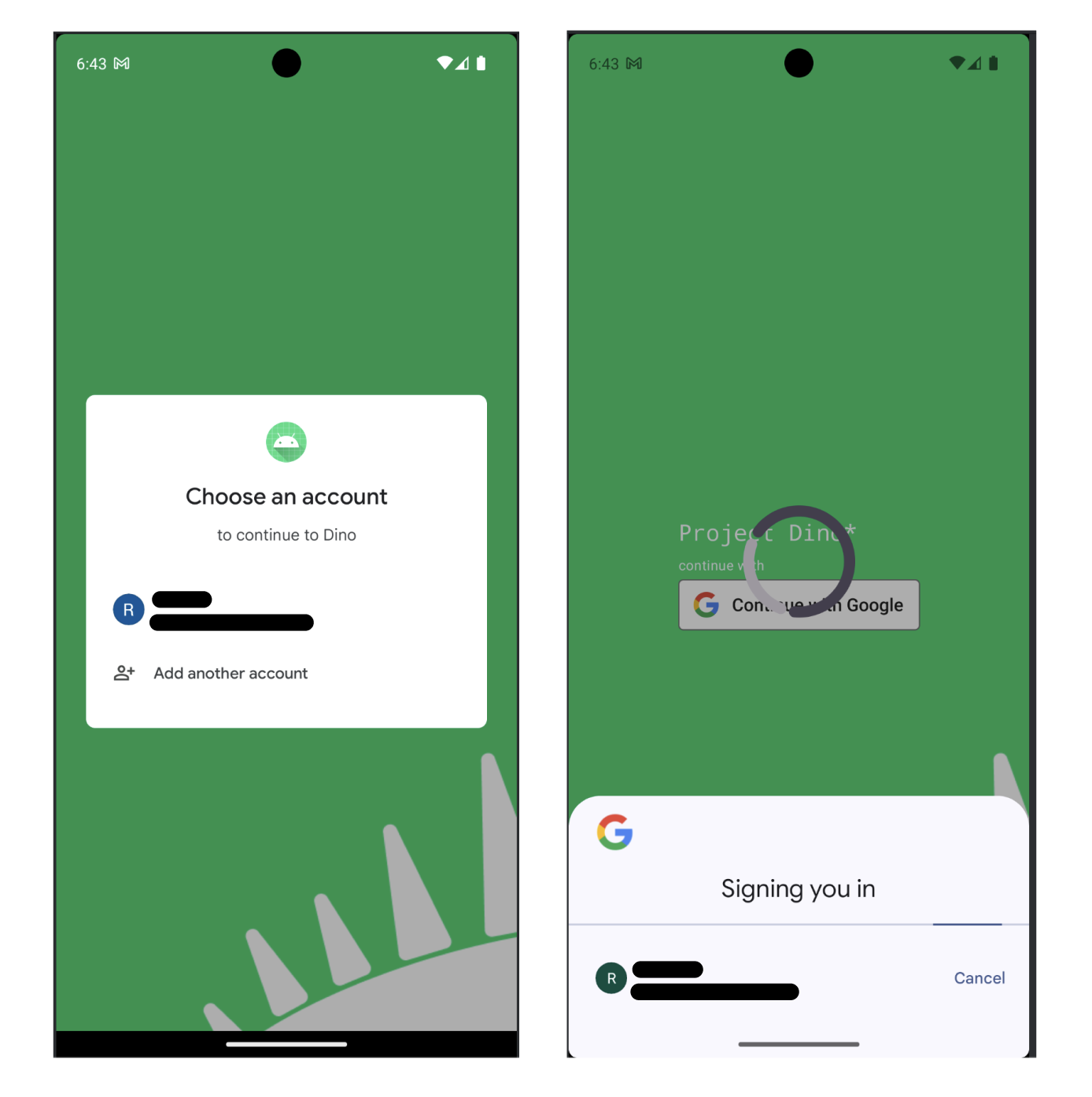 This article explores integration of login via Credential bottom sheet UI and manual click of the login with google button for native android in a shared UI KMP app.
KMP Archietecture
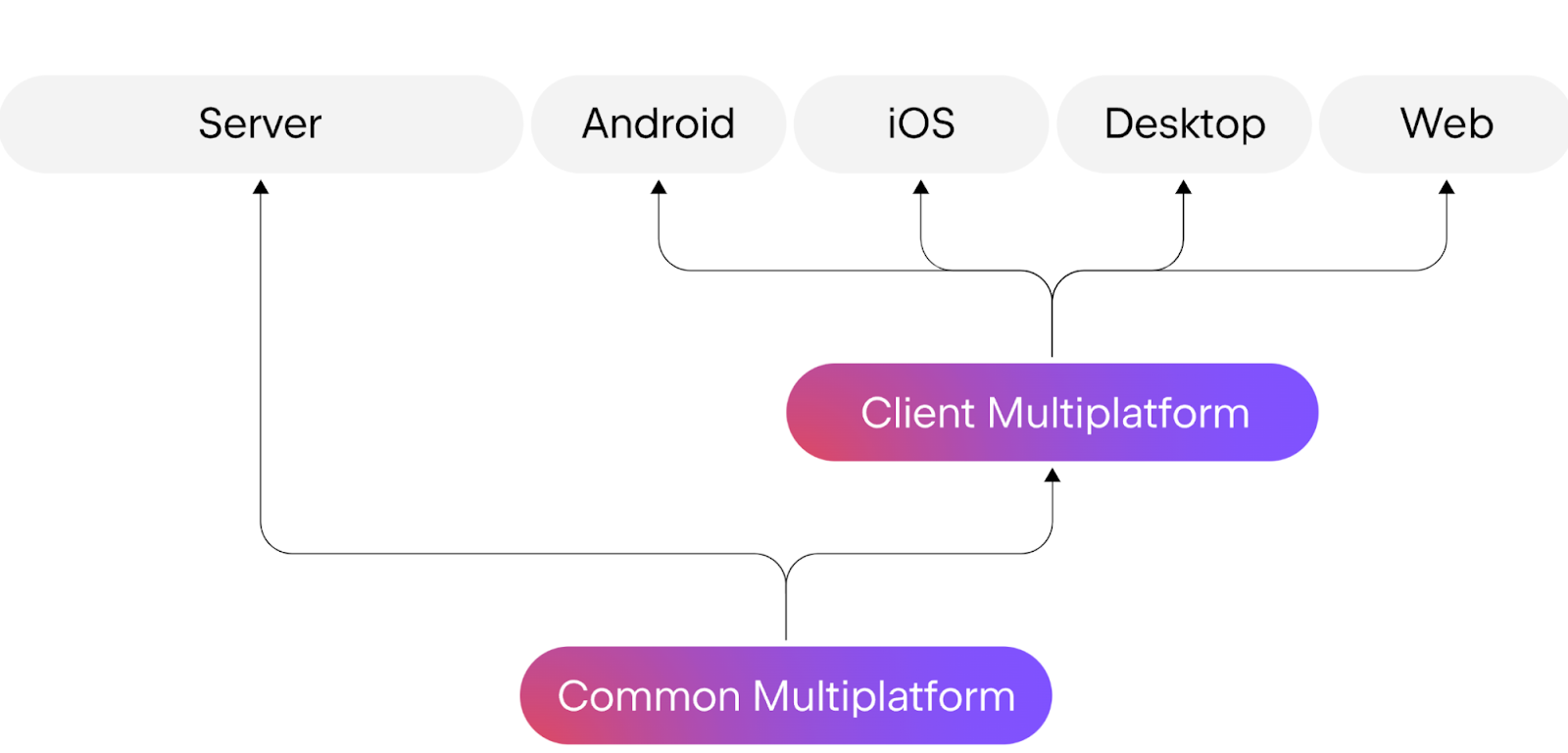
Refer to Project Synapse code for understanding of the archiecture. Basically, the UI layer of the application is shared between iOS and Android (composeApp module), with shared module acting as the common ground for business logic between UI and backend server, while Ktor-based server rests in the server module.
Problem with GAuth
For long integrating Google auth cross-platform had been cumbersome due to lack of a unified library or methodology to do so. Also the problem of how do you integrate passkeys, password based logins with existing Google auth solutions? For android native, this problem has been largely resolved by Google credentials library. Though for KMP apps there exists KMPAuth library which sets up up Gauth for both iOS and android, but buried under layers of native libraries. This hides a ton of implementation details of the auth, which this article explores in depth.
KMP to native split
Since we are trying to split the login methods to native iOS/Android implementation while using unified kotlin UI, we will split our login Composable across native modules with expect/actual.
/* composeApp/commonMain */

@Composable
expect fun ClickableContinueWithGoogle(nonce: String): Unit

Box(Modifier.align(Alignment.Center)){
    Column {
        Text(
            "Project Dino*",
            fontSize = 20.sp,
            color = Color.White,
            fontFamily = FontFamily.Monospace
        )
        Spacer(Modifier.height(5.dp))
        Column {
            Text(
                "continue with",
                color = Color.White,
                fontSize = 12.sp
            )
            ClickableContinueWithGoogle(nonce)
        }
    }
}
Above ClickableContinueWithGoogle is an clickable image, which would trigger the manual google with login.
Crendential manager bottom sheet UI needs to be triggered when the user navigates to a specific composable. This can be achieved with LaunchedEffect and GetGoogleIdOption builder.
check if the user has any accounts that have previously been used to sign in to your app by calling the API with the setFilterByAuthorizedAccounts parameter set to true.
Nonce is a safe-guard between client-server to prevent token misuse. This topic is worth an article for itself.
Once the googleIdOption instance is ready to be created, we make the call inside LaunchedEffect:
LaunchedEffect(nonce) {
    //auto login flow
    val request: GetCredentialRequest = GetCredentialRequest.Builder()
        .addCredentialOption(googleIdOption)
        .build()

    try {
        val result = credentialManager.getCredential(
            request = request,
            context = context
        )
        Log.i(TAG, "Triggered Google Sign in success")
        handleSignIn(result)
    } catch (e: GetCredentialException) {
        Log.e(TAG, "Error getting credential", e)
    }
}
Further checking the flow of the handleSignIn() function
fun handleSignIn(credsRequest: GetCredentialResponse) {
    val credsType = credsRequest.credential
    when (credsType) {
        is CustomCredential -> {
            if (credsType.type == GoogleIdTokenCredential.TYPE_GOOGLE_ID_TOKEN_CREDENTIAL) {
                try {
                    val googleIdTokenCredential = GoogleIdTokenCredential.createFrom(credsType.data)
                    Log.d(TAG, googleIdTokenCredential.idToken)
                } catch (e: GoogleIdTokenParsingException) {
                    Log.e(TAG, "Error parsing Google ID token", e)
                }
            }
        }
        else -> {
            println("Unknown credential type")
        }
    }
}